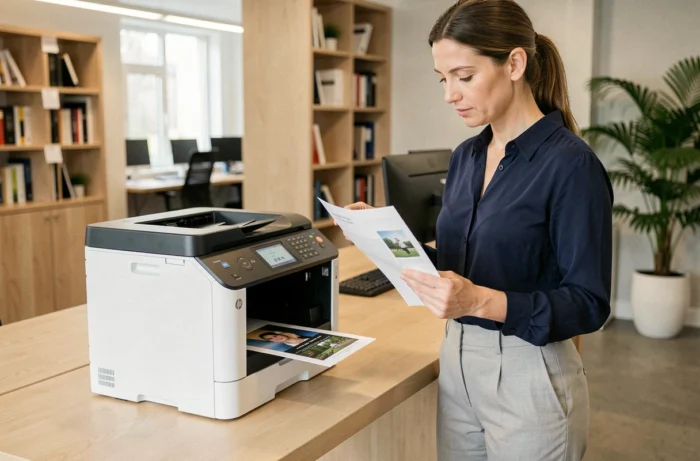
The HP Color LaserJet Pro MFP M281fdw remains a color laser multifunction printer frequently mentioned in comparisons, but its actual performance largely depends on firmware management and the condition of the imaging path. Here, we provide our detailed technical analysis of this model, highlighting points that product sheets often overlook.
Firmware and third-party toners: the true cost of ownership of the M281fdw
The issue of firmware is the first parameter to master with this printer. HP deploys updates that can block the recognition of compatible toner cartridges. After an update, a third-party toner that worked the day before may trigger an error message or be completely ignored by the machine.
We recommend disabling automatic firmware updates as soon as the printer is set up. This precaution preserves the freedom of choice regarding consumables and significantly reduces the cost per page, as compatible toners are much cheaper than original HP cartridges.
Rolling back to a previous firmware version (downgrade) is technically possible through resources like the HP-legacy-firmware-index GitHub repository. However, this choice creates a trade-off between network security and savings on consumables. An older firmware removes the block on third-party toners but exposes the printer to unpatched vulnerabilities. On a corporate network, this exposure is not trivial. On an isolated home network, the risk is more acceptable.
If you consult a review of the HP Color LaserJet Pro MFP M281fdw that does not mention this firmware constraint, it lacks a crucial piece of information for estimating the actual operating budget.
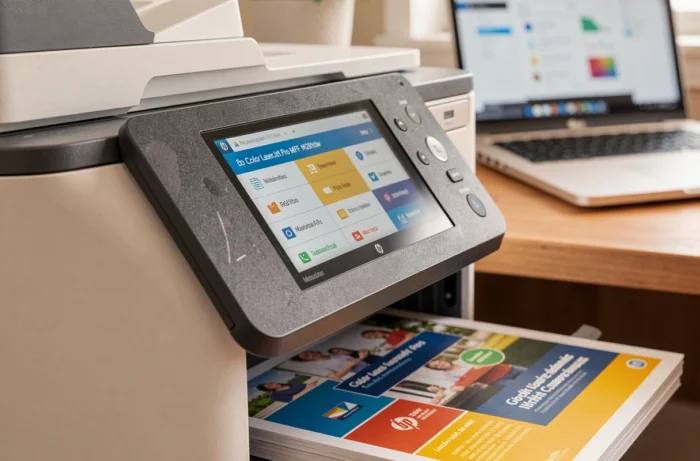
Imaging path diagnostics: common failures on the M281fdw
Print defects on this laser multifunction printer almost never stem from the software driver. Vertical stripes, repeated marks, and smudges point to hardware imaging path issues, not a configuration problem.
Three components should be inspected as a priority:
- The imaging drum: regularly spaced marks on the page indicate a scratched or contaminated drum surface due to toner residue. Replacing the drum fixes this defect in most cases.
- The transfer roller: uneven pressure or a dirty roller produces light areas or blurry bands, especially on solid colors. A dry cleaning with a lint-free cloth is sometimes sufficient, but a worn roller needs to be replaced.
- The fuser: smudges that smear upon touch indicate insufficient fusing temperature or a fuser nearing the end of its life. This component has a limited lifespan, often shorter than that stated in the manufacturer’s specifications.
Changing the driver, reinstalling the software, or modifying print settings does not resolve any of these hardware issues. We observe that many users waste time on software solutions when the failure is mechanical.
Color print quality and limitations on photo paper
The M281fdw delivers acceptable color quality on standard office paper. Marketing documents, graphics, and presentations come out with colors sufficiently accurate for regular professional use.
However, photo printing on special paper remains a structural weak point of this laser technology. The toner sits on the surface without penetrating the fibers as ink would in inkjet printing. On glossy photo paper not designed for laser, the result lacks depth in gradients, and skin tones appear artificial.
To achieve an acceptable output, it is essential to use laser-compatible photo paper, with a dense weight and a coating suitable for toner fusing. Inkjet photo papers, even high-end ones, produce mediocre results with this machine.
Color settings to know
The driver offers a “vivid color” mode that saturates hues. This mode is suitable for marketing materials but distorts photographs. We recommend staying in standard color mode and manually adjusting the toner density if prints appear too pale, rather than compensating with a saturated profile.
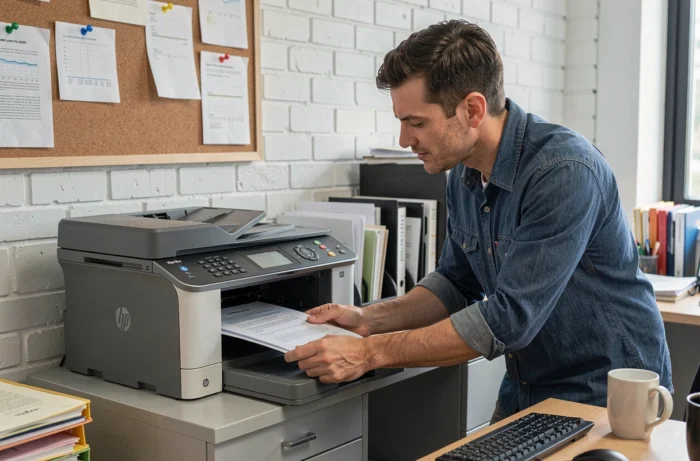
Scanner and fax: multifunction capabilities of the M281fdw in real use
The flatbed scanner and automatic document feeder (ADF) are among the selling points of this model. In practice, the scanner works well for text document scanning and color copying. The optical resolution is sufficient for archiving and OCR.
The built-in fax remains an asset for regulated professions (health, legal, real estate) where faxing retains legal value. Wi-Fi and Ethernet network connectivity simplifies sharing among multiple workstations without a dedicated print server.
The scanning speed via the ADF is satisfactory for batches of a few dozen pages. Beyond that, jams become more frequent if the paper is thin or slightly wrinkled. We advise properly fanning the stacks of documents before insertion.
Network connection and setup
Wi-Fi setup via WPS works smoothly on most recent routers. The color touchscreen makes navigating the menus easy, although its responsiveness does not match that of a smartphone screen. The HP Smart app allows mobile printing, but its frequent updates sometimes introduce regressions in network discovery.
The HP Color LaserJet Pro MFP M281fdw remains a versatile color laser multifunction printer as long as the issues of firmware and consumables are managed. Its main flaw is not hardware but strategic: the policy of locking third-party toners impacts the total cost far beyond the initial purchase price. For shared office use with needs for copying, scanning, and faxing, it fulfills its role.